Switching agents in Herdr
Use the sergio.agb Herdr plugin to open the session picker in a new tab,
then continue a conversation in another agent or account. The shortcuts below
assume the plugin is installed and bound to prefix+a; Herdr's default prefix
is Ctrl+B.
Connect to a remote session
Run this on your laptop, using your SSH host alias:
--remote-keybindings server uses the remote host's keybindings, including
its plugin actions. Without it, herdr --remote defaults to local keybindings
and excludes custom command bindings, so Ctrl+B, then A won't open agb.
If you're already attached, detach with Ctrl+B, then Q, and reconnect
with the command above. Detaching leaves your agents running.
Continue the current conversation in another agent
- From the agent pane, press
Ctrl+B, thenAto openagbin a new tab. - Select the conversation you're currently working on; type part of its title to filter.
- Press
Ctrl+Tto cycle through destination agents and accounts, such asCX1orCC2. - Optionally press
Ctrl+Yto enable YOLO for this launch; the picker shows a redYOLObadge. - Press
Enterto launch the destination.
A hop between tools or accounts starts a new conversation with the source transcript as context. Your original agent stays open in its pane. See Migration is a fork, not a move for the limits of transcript handoffs.
Start a new conversation
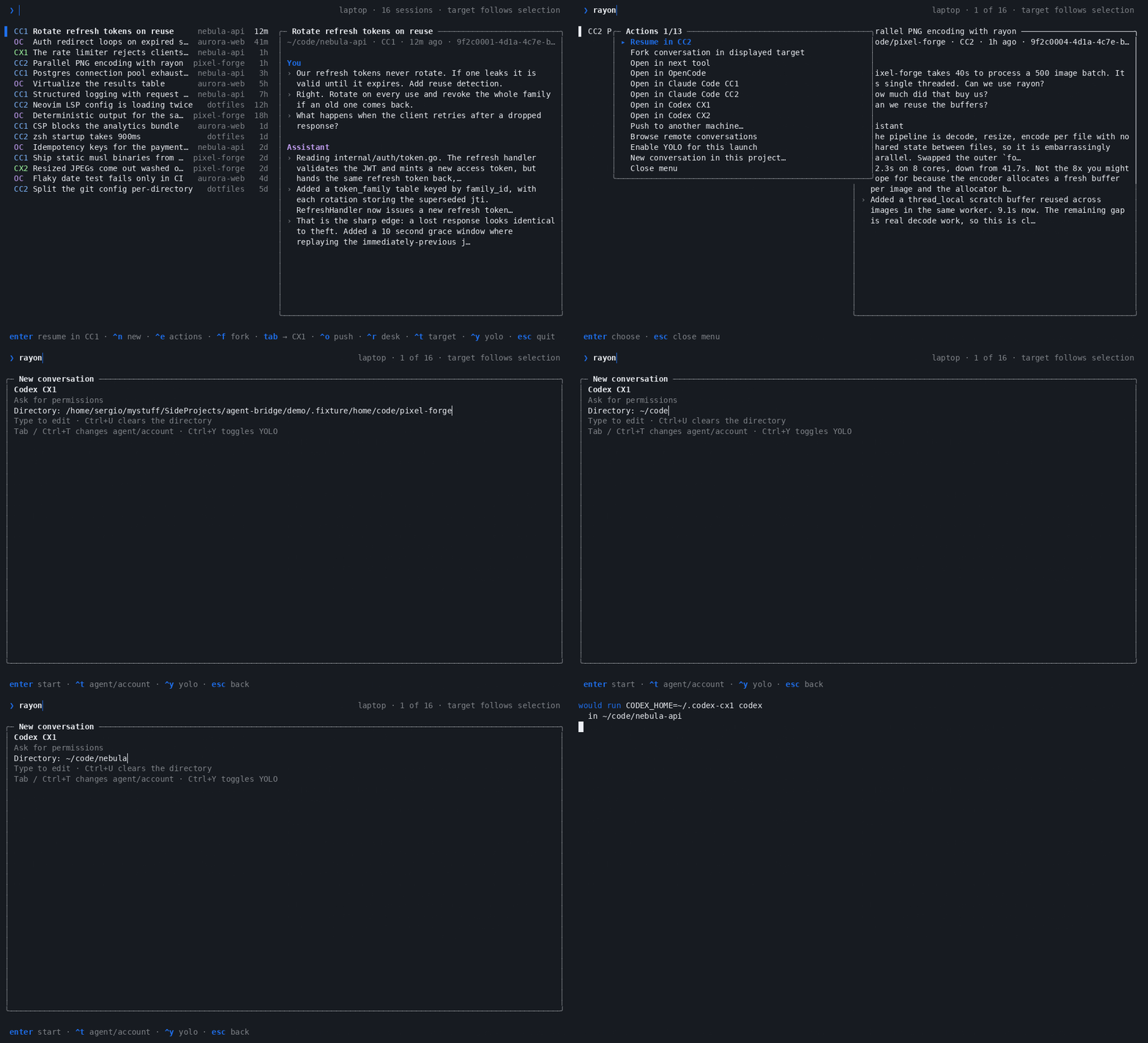
Open agb in a herdr pane and click ^n new or press Ctrl+N. Select an
agent/account with Tab or Ctrl+T, enter the project directory, then click
enter start. The agent starts in that pane with a blank conversation.
You can also run agb new --target cx1 --dir ~/my-project in a pane.
Right-click an existing conversation to see its actions, including resuming,
forking, choosing another agent/account, pushing, and starting a new
conversation in the same project. Ctrl+E opens the menu from the keyboard.
Move a conversation to herdr on desk
Open agb inside your local herdr. Select a Claude Code or Codex conversation
and click ^o push in the footer (or press Ctrl+O). Review the destination
and checks, then click enter push to copy it. If the conversation is still
running locally, the panel offers ^k stop it here & push; that action ends
the local agent before transferring its session.
With an arrive.desk hook configured, the push opens the conversation in a
new herdr tab on desk. The hook goes in your local
~/.config/agentbridge/config.json alongside moveHosts:
{
  "moveHosts": ["desk"],
  "arrive": {
    "desk": "p=$(herdr tab create --label {title} --cwd {dir} --no-focus | jq -r .result.root_pane.pane_id) && herdr pane run \"$p\" {resume}"
  }
}
Merge these fields into your existing config so you keep your account settings. Connect to desk with the command above to use the new tab. The transfer keeps the session ID and history; it doesn't transfer a running process or your working tree. Commit and push your code, and update the checkout on desk.
To bring it back, quit the agent on desk, open agb in your local herdr,
and click ^r desk (or press Ctrl+R). Select the conversation and click
enter pull & resume here. See Push and pull for prerequisites
and the checks that can stop a transfer. OpenCode sessions can't transfer
between machines yet.
Mouse controls require your terminal and herdr connection to forward mouse
reports to the pane. Herdr normally keeps right-clicks for its own menu; agb
automatically enables herdr pane input --pane "$HERDR_PANE_ID" --right-click pane
when its picker opens inside a managed pane. Right-click the pane frame to
open Herdr's menu instead. Ctrl+E opens agb's menu from the keyboard.
If the shortcut doesn't work
If Ctrl+B, then A does nothing remotely, check that you connected with
--remote-keybindings server and that the remote host has the sergio.agb
plugin and its prefix+a binding configured.
As a fallback, open a new tab with Ctrl+B, then C, and run agb in its
shell. Once the picker opens, Ctrl+T, Ctrl+Y and Enter are agb controls;
they don't depend on the Herdr plugin shortcut.